This FAQ contains the most commonly asked non-technical questions about our
SignaLink™ USB interface. For technical or
troubleshooting questions, please see our
SignaLink™ USB Troubleshooting FAQ.
-
Do
I need to disable my computer's sound card to use the SignaLink USB?
- Can
I use the SignaLink USB to control my radio, or will I need a separate CAT
interface?
- Can
I use the SignaLink USB with HRD and similar programs that offer radio
control?
- Will
the SignaLink USB work with the WinLink?
- What
advantages does the SignaLink USB have over other sound card interfaces?
- Will
the SignaLink USB work with my computer?
- Does the
SignaLink USB work with Windows 11?
- Does the
SignaLink USB require special drivers?
- Does
the SignaLink USB require special communications software?
- Does the SignaLink USB
support FSK?
- Can
I use more than one SignaLink USB on my computer at the same time?
- Will the SignaLink
USB work with my radio?
- Are
the radio cables for the SignaLink SL-1 and SL-1+ compatible with the
SignaLink USB?
- Do I need
the SLASSY Cable Kit with the SignaLink USB?
- What software comes with
the SignaLink USB?
- Does the SignaLink
USB require a power supply?
- What modes can I
operate with the SignaLink USB?
- Will the SignaLink
USB work with my USB hub?
- Why
do we use jumper wires and will I need to install them?
NO - Absolutely not! One of the greatest benefits of using the
SignaLink USB, is that it completely frees up your computer's sound card so that
it can be used as it was intended. With the SignaLink USB properly
installed, your computer will play it's music, beeps and other sounds through
your existing sound card and speakers, and only your communications program (WSJT-X, etc.) will "talk" to the SignaLink. This is simply not
possible with other interfaces that require a connection to your existing sound
card.
NOTE: One of our competitors is claiming that the
great majority of Windows sound card programs do not let you directly select the
sound card within the program, and this is simply NOT TRUE. A quick check
of virtually any modern Windows, MAC or Linux sound card program will clearly
show that you can select which sound card you want to use within the program
itself. Some examples of this are WSJT-X, Digipan, Hamscope, Ham Radio Deluxe
(HRD), Mix-W, MMSSTV, MMTTY, MT63, EchoLink, AGW Packet Engine, Multimode,
Cocoamodem, and WSJT. The ability to select the sound card that you
want to use is built into the Windows, MAC and Linux operating system's
programming interface, and is available to all standard sound card programs that
run in those environments. Only older DOS type programs (which won't work
with the SignaLink USB anyway), and outdated/unsupported Windows programs
(usually pre-Windows 98 era) might require you to select the sound card in
Windows rather than the program.
TOP
The SignaLink USB is a sound card interface that provides the necessary
hardware to operate virtually all sound card digital and voice modes, but it does NOT
provide the "CAT" (Computer Assisted Tuning) hardware needed to
control the radio. If you want to control your radio (tuning, band/mode
selection, etc.), then you will need a separate CAT interface. We suggest
checking your radio manual for the radio manufacturer's CAT interface part
number (CI-V, CT-x, etc.). If you do not want to purchase a CAT interface
from the radio manufacturer (these are usually more expensive), then we suggest
searching the internet for a compatible unit. NOTE: Please see the
question below about using the SignaLink USB with programs that offer CAT
control.
TOP
Yes, but only for digital operation (PSK31, SSTV, etc.). If you want to
use the program's radio control features, then (as noted above) you will
need a separate CAT/CIV interface.
TOP
Yes, the SignaLink USB can be used with the WinLink Express to
access the WinLink system on HF as well as VHF/UHF. Be sure to see our
VARA information as this new mode is quickly becoming the standard for accessing
WinLink.
TOP
The state-of-the-art design of the SignaLink USB offers many advantages over
other interfaces. Some of these advantages include:
- Very Simply Installation
- The SignaLink USB has only one USB connection
to the computer, and in most cases, only one connection to the radio (see
note below). All other interfaces that use the computer's sound
card always require more cable connections, which increase installation
difficulty and station clutter.
- Very Easy Setup -
The
SignaLink USB has only two software-based volume controls to set for
Transmit and one for Receive, and the settings for Transmit are the
same on all
PCs! Interfaces that use the computer's sound card often require you to set multiple
software controls (sometimes 4-6 controls) and the settings vary widely from
computer to computer.
- Very Easy Operation - The
SignaLink USB has convenient front-panel controls that let you easily adjust
your Transmit power, Receive level, and Transmit Delay "on the
fly". Other less advanced interfaces do not have front
panel controls and require you to open the unit to make adjustments.
- Frees your Computer's Sound Card and Speakers
- The SignaLink USB has its own built-in sound card,
so it will not tie-up your computer's existing sound card and
speakers. With the SignaLink USB installed, you will still be able to
hear your computer's "systems sounds" and play music through your
speakers without having to unplug and re-plug anything. Other
interfaces that use the computer's sound card may "load" the
speaker circuit and require you to disconnect the speakers, and/or re-adjust
the volume controls every time you switch from "Ham" operations to
other things (playing music, videos, games, etc.).
- Full Computer / Radio Isolation
- The SignaLink USB provide complete isolation between
the computer and the radio. Both Transmit and Receive Audio are
transformer isolated. Push-To-Talk and Ground are isolated by a sealed
relay. Other less advanced interfaces only isolate Transmit
audio, which can let noise and hum get into your system.
- Designed For Radio-based Communications
- The SignaLink USB was designed specifically for
radio-based Digital and Voice communications. Its Transmit output and
Receive input levels are fully compatible with virtually ALL radios. To insure
optimum performance, all parts used in the SignaLink USB are of the highest
quality, and all active components are high-tolerance, low-noise with a wide
dynamic range.
NOTE: If you are connecting
the SignaLink USB to your radio's Data, Accessory or Packet jack, then you will
only have one connection to the radio. If you are connecting the SignaLink
USB to the Mic jack and your radio does not have Receive Audio available on the
Mic connector (some radio's don't), then you will also need to connect the
included audio cable to the radio.
TOP
The SignaLink USB will work with virtually any computer that has an available
USB 1.1, USB 2.0 or USB 3.0 port and is running one of the following supported Operating
Systems:
NOTE: USB-C ports can also be used as
long as you have the approprate USB-C to USB 2.0/3.0 adapter.
Windows 98SE, ME, 2000, XP, Vista, Windows 7, Windows 8.x, Windows 10
and Windows 11
MAC OS 9.1 or later
MAC OS X 10.00 or later
Linux
TOP
Yes, the SignaLink USB works with all versions of Windows from Windows 98SE
through Windows 11. As with all other supported Operating Systems, the drivers
for the SignaLink USB are always provided directly by the operating system itself.
TOP
No. All required drivers are provided
directly by the supported operating system
(Windows, MAC and Linux). All versions of Windows after WIN98SE provide the driver directly from the OS
(No CD or download required).
TOP
No. The SignaLink USB works with virtually ALL sound card digital and voice communications
programs.
TOP
None of our SignaLink products support FSK operation. However, except
among a small group of "FSK purists", this is not an issue because FSK
is no longer the preferred method of operating RTTY. FSK used to be
preferred because radios we're not very linear in operation on Transmit, and the
only way to access your "good" RTTY filter was with the radio set to
the RTTY mode. Today's modern radios provide excellent AFSK performance in
both Transmit and Receive, and most provide complete control over all filtering,
so you can still select the "good" RTTY filter while in a digital AFSK
mode. AFSK is also preferred over FSK because every other modern digital
mode (PSK31, MT63, SSTV, JT65, etc.) uses AFSK, and on most radios, switching to FSK
would require a completely different cable connection.
TOP
Yes. If your computer is fast enough, you can have one SignaLink USB
attached to each USB port, and be running all of them at the same time using
different communications programs (or multiply instances of the same
program). We have successfully tested three SignaLink USB units running
PSK31 at the same time on a 1.6Ghz PC. A slower computer might also work
fine, but a faster one might be required depending on the demands of your
communication program(s).
When using multiple SignaLink USBs on one computer, each SignaLink will be
given a sequential number in addition to the normal "USB Audio Codec",
or "Microphone - USB Audio Codec" description. To avoid
complicating things any more than necessary, we suggest that you install and
configure each SignaLink USB one at a time, and then confirm that each unit is
working before plugging in additional units. Note that the sound card
numbering assignments, sound card selection in both Windows and the
communication program(s), and the sound card volume levels may change if you
unplug any of the USB cables.
TOP
The SignaLink USB will work with virtually any Ham or commercial transceiver that has a Data Port,
Accessory Port, or Mic jack. It will also work with virtually any Receiver or
Scanner that has an External Speaker, Headphone or fixed level output jack. Specific radio
requirements are dependent on the modes that you wish to
operate. Carefully review your software documentation to determine the
suitability of your radio for a particular mode.
NOTE: "CB" radios typically require two "PTT" type
lines (one for TX and one for RX) and cannot be used with the SignaLink (or most
other interfaces!) without modification.
TOP
Yes. The radio cables for the SL-1, SL-1+ and SignaLink USB are exactly
the same. If you already have a cable for your SignaLink, then you can use that
same cable with the SignaLink USB. NOTE: We do not sell the
SignaLink USB without a radio cable. If you already have a cable from a
previous model, then we suggest ordering a SignaLink USB with an un-terminated
radio cable. This will let you build your own cable to suit any radio that
you might own in the future.
TOP
No. The SLASSY Cable Kit is used only with the SignaLink SL-1 and SL-1+.
TOP
Every communication program that we are aware of,
including the popular WSJT-X program for FT8, can be
downloaded using the links
provided on our SignaLink Software Page.
As noted above, the drivers for the SignaLink USB are always
provided by the supported Operating System so a driver/software CD is not required
or provided.
TOP
No. The SignaLink USB never requires external power. It is always
powered by the computer's USB jack.
NOTE: If you are plugging the
SignaLink USB into a USB hub, then the hub needs to be an externally
powered
hub that supports "high-power" USB devices. See question "Will the SignaLink USB work with my USB
hub?" below for more details.
TOP
The SignaLink USB supports virtually ALL digital modes that are available for sound card
interfaces including but not limited to, PSK31, MT-63, WSJT/WSJT-X modes (FT8,
JT4, JT9, JT65, QRA64, ISCAT, MSK144, WSPR, JTMS, FSK441, FSK315, ISCAT, and
JT6M.), SSTV, APRS®, Packet (300
and 1200 baud), VARA HF, VARA Narrow, and VARA Wide. The SignaLink USB also supports virtually ALL Voice modes
(VOIP, RoIP, etc.), such as EchoLink®, and Zello. About the only modes that
you can't operate with the SignaLink USB, or any other sound card interface, are
Pactor, G-TOR and Clover. These
modes are unavailable due to licensing or other issues**.
**NOTE: Pactor RECEIVE ONLY software is available for
Windows-based computers, and Pactor 1 software (transmit and receive) is
available for Linux.
TOP
The SignaLink USB should work fine with any powered USB hub
that is designed specifically for "high power" USB
devices (current draw of 100-500ma). Non-powered hubs, and those that are
designed for "low power" USB devices most likely will NOT work. To avoid any problems, we suggest that you plug
the SignaLink into a powered, "high power" USB hub, or (preferably) directly into the computer's
rear panel USB jack.
NOTE: A few of our customers have found that some USB hubs that are
advertised as being suitable for "high power" USB devices simply are
not. If you are using a USB hub and you cannot get the SignaLink to
transmit properly, then you may need to plug the SignaLink USB directly into the
computer.
TOP
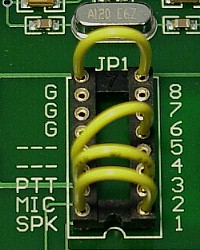 |
NOTE: Plug & Play Jumper Modules are
available for most configurations so you usually do not have to use jumper
wires. If you plan on switching radios frequently or if you just want to
simply your installation, then be sure to check them out.
We designed the SignaLink USB to work with all radios, regardless of the
connector type or pin-out used by the radio manufacturer. In a perfect
world, all manufacturers would standardize on a single connector type and
pin-out, but in the not so perfect world that we live in, there are at least a dozen different
connector types and many dozens of different pin-outs!
To allow the SignaLink to work with all of these different configurations, we
use detachable radio cables (available for all common connector types) and a
reconfigurable jumper block that lets you easily route each of the required
radio signals (PTT, Ground, etc.) to the correct place on the SignaLink.
Each jumper wire simply presses into the socket on the SignaLink board (see
picture left) and can easily be removed and reused if needed. Without
these detachable cables and jumper wires, you would most likely be
stuck using the SignaLink with only one radio, and you'd have to purchase an entirely new unit if
you bought a new radio or simply wanted to use a different one.
Unless you are planning on "Receive Only" operation using External
Speaker or Headphone audio, you will need to install the jumpers inside your
SignaLink. Jumper settings for most radios are provided on the SignaLink Support page of our web site. Jumper
settings are also provided with some specific radio cables. For any
"unknown" radio, you can always follow the step by step jumper
installation procedure or contact our Technical Support
Staff and they'll tell you how to install them.
|
TOP
Tigertronics - All Rights Reserved | BayPac, SignaLink, Auto-PTT, and TigerTrak are trademarks of Tigertronics
APRS is a trademark
of Bob Bruninga | EchoLink is a trademark of Synergenics, LLC
All other trademarks are the property of their respective owners